

Backup incremental de WordPress: maximiza la eficiencia y minimiza el riesgo.
Este es un resumen del artículo. Si necesitas contexto adicional, aquí tienes el enlace original: https://duplicator.com/incremental-backups-wordpress/?utm_source=rss&utm_medium=rss&utm_campaign=incremental-backups-wordpress
Most WordPress sites run one backup a day. That’s a solid habit, and it’s what gets most site owners back online after a bad update.
But your site keeps changing after that backup finishes.
Orders come in. Students finish lessons. Someone fills out a contact form, and you publish a new post. If your site breaks at 5 PM, last night’s backup doesn’t have any of that.
The obvious fix is to back up more frequently. The problem is that a full backup copies your entire site every time, so hourly full backups would mean 24 complete copies a day.
Incremental backups solve this. I’ve been running them hourly on one of my test sites, and the difference in storage surprised me.
In this post, I’ll explain what an incremental backup is, how it compares to full and differential backups, and how to set up hourly incremental backups in WordPress with Duplicator.
Here are the key takeaways:
- An incremental backup saves only what changed since the previous backup, after one full copy of your site called the baseline.
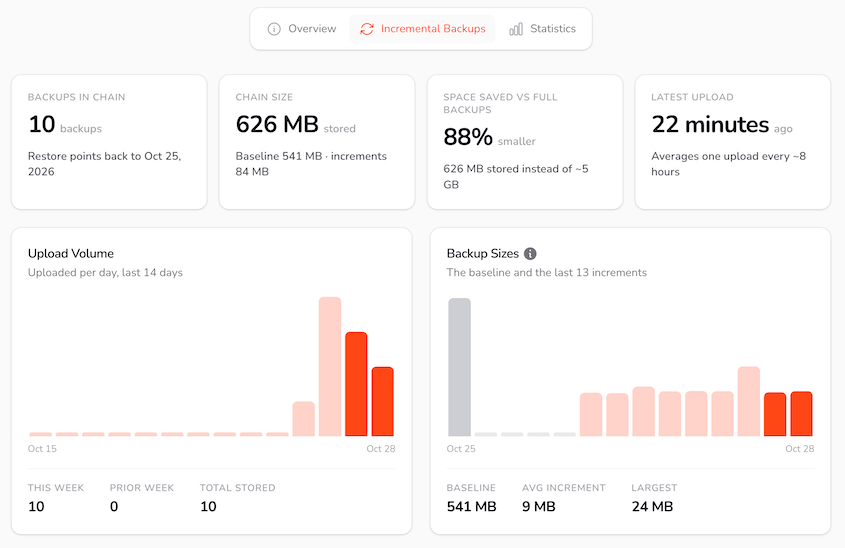
- Smaller backups can run more often. On our test site, the baseline was 540 MB and the average incremental snapshot was just 13 MB.
- You still get a full restore. Duplicator combines the baseline and the snapshots into one complete backup of your site from that point in time.
- Differential backups grow over time because they save everything since the last full backup. Incremental backups stay small.
- Quiet hours don’t waste storage. If nothing changed on your site, Duplicator skips that run.
- Hourly backups fit busy sites best, like online stores, membership sites, and sites that collect form entries or donations.
- Incremental backups don’t replace every other backup. Keep a full backup in a second off-site location before big changes.
Table of Contents
- What Is an Incremental Backup?
- How Do Incremental Backups Work?
- Incremental vs. Full vs. Differential Backups: What's the Difference?
- What Are the Different Types of Incremental Backups?
- What Are the Advantages and Disadvantages of Incremental Backups?
- How to Set Up Incremental Backups in WordPress With Duplicator
- How Often Should You Run Incremental Backups?
- Frequently Asked Questions About Incremental Backups
- Back Up Every Hour Without Filling Your Storage
What Is an Incremental Backup?
An incremental backup copies only the files and data that changed since the last backup. The first backup is a full copy of your site. Every backup after that saves just the differences.
Think of it like saving a long document. You don’t retype the whole thing every time you hit save. The first version is complete, and each save after that records the new paragraphs and edits.
That first complete copy is the baseline (some tools call it the full backup or anchor). Every backup after it is a smaller snapshot that sits on top of the baseline.
Together, they form a backup chain.
For WordPress sites, this fits how sites change. Most days, you’re adding a few posts, a batch of orders, or a plugin update. There’s no reason to copy 500 MB of themes, plugins, and images every time a customer checks out.
How Do Incremental Backups Work?
Every incremental backup system follows the same basic cycle: one full copy, a series of small change snapshots, and a restore that puts them back together.
Here’s how that works in Duplicator, a popular WordPress backup plugin.

The Baseline: One Full Copy of Your Site
The chain starts with a baseline. This is one full copy of your site’s files and database, roughly the size of a standard backup.
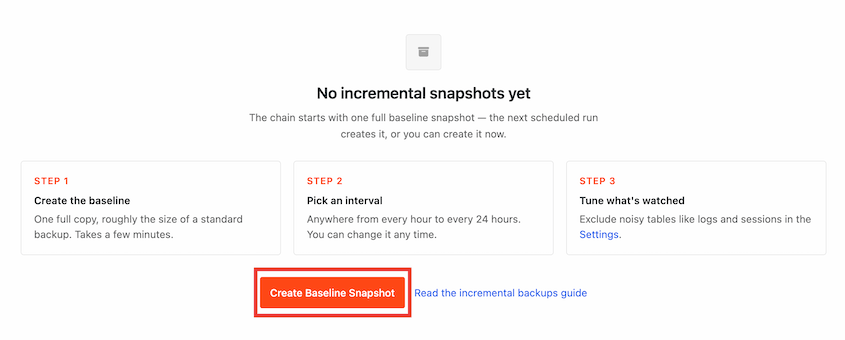
Creating the baseline takes a few minutes, depending on the size of your site. You only do it once per chain.
What Each Incremental Snapshot Captures
After the baseline, each backup compares your site to the last snapshot. Duplicator uploads only the files that were added, modified, or deleted, plus the database tables that changed.
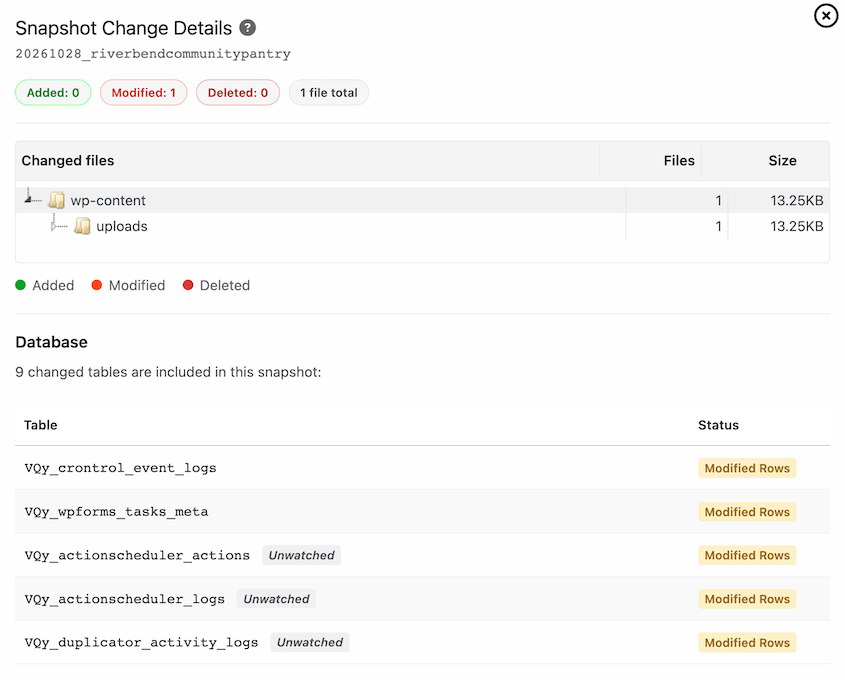
Across 10 backups, the chain used 88% less storage than 10 full backups would have.
If nothing changed since the last snapshot, Duplicator skips the run completely. A skipped run doesn’t upload anything, and it isn’t counted as a failed backup.
Incremental Backup Example: A Week of Daily Backups
Here’s what a week of daily incremental backups looks like on an online store:
- Sunday: A full backup of the whole site (the baseline).
- Monday: Only Monday’s new orders, products, and edits.
- Tuesday: Only what changed since Monday.
- Wednesday: Only what changed since Tuesday.
If your site breaks Thursday morning, a restore needs Sunday’s baseline plus the Monday, Tuesday, and Wednesday snapshots.
A differential backup would handle Wednesday differently. It would copy everything since Sunday, which makes it bigger, but the restore only needs two files.
An hourly incremental backup schedule follows the same pattern with even smaller snapshots.
How an Incremental Restore Rebuilds Your Site
Since each snapshot only holds changes, it isn’t a complete backup on its own. To restore one, the backup tool has to combine the baseline with every snapshot up to that point.
You don’t have to stitch those pieces together yourself.
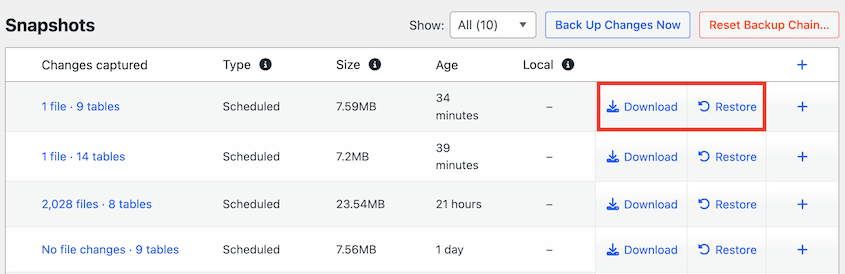
When you pick a snapshot in Duplicator, Duplicator Cloud generates a full backup of your site exactly as it was at that time. That backup is a regular Duplicator archive and installer, so you can restore it on the same site or move it to a new one.
Incremental vs. Full vs. Differential Backups: What’s the Difference?
You’ll frequently see three backup types: full, differential, and incremental. The difference comes down to what each backup copies and what a restore needs.
Here’s how they compare:
| Full backup | Differential backup | Incremental backup | |
|---|---|---|---|
| What each backup copies | The entire site | Everything changed since the last full backup | Everything changed since the last backup of any type |
| Size of each backup | Largest | Grows each day until the next full backup | Smallest |
| Time to create | Slowest | Gets slower over the cycle | Fastest |
| What a restore needs | One backup | The last full backup plus the latest differential | The baseline plus every snapshot up to that point |
| Best fit | Before major changes, migrations, and archives | Weekly cycles with moderate changes | Frequent backups (hourly or daily) on sites that change often |
Full Backup
A full backup copies everything every time: your files, themes, plugins, uploads, and database.
It’s the simplest backup to restore because it’s one self-contained file. It’s also the heaviest. Running full backups every hour on a large site would use a lot of server work and fill your storage quickly.
Full backups are still the best choice before a WordPress migration or a major update.
Differential Backup
A differential backup saves everything that changed since the last full backup (not since the last backup of any type).
That means each differential is bigger than the one before it. By the end of a weekly cycle, a differential can be close to the size of a full backup. The upside is a shorter restore path, since you only need two files.
Incremental Backup
An incremental backup saves only what changed since the most recent backup. Each snapshot stays small, as long as your site’s changes are small.
This is what makes hourly backups practical. You get more restore options throughout the day without copying your entire site every time.
What Are the Different Types of Incremental Backups?
Every incremental backup copies only what changed. The difference between types is how the tool manages the chain and builds a restore.
Here are the types you’ll see most often.
Traditional Incremental
You run a full backup on a schedule (often weekly) and incremental backups in between. Each new full backup starts a fresh chain.
Incremental Forever
You run one full backup, then only incremental backups from that point on. The tool merges older snapshots in the background so the chain doesn’t grow forever.
Synthetic Full Backup
The backup tool builds a new full backup by combining the last full backup with the incremental backups after it. It’s assembled from backups you already have, so your live site doesn’t do the work.
Reverse Incremental
Each new incremental backup is merged into the full backup, so the newest version is always a complete copy. Older versions are saved as changes going backward.
Block-Level Incremental
Instead of copying a whole file when part of it changes, block-level backups copy only the changed blocks inside that file. You’ll mostly find this in server and enterprise backup tools.
When you restore, Duplicator Cloud builds a complete backup from the baseline and snapshots. That’s the same idea as a synthetic full backup, and your server doesn’t have to assemble it.
What Are the Advantages and Disadvantages of Incremental Backups?
Incremental backups are a great fit for frequent backups, but they work differently from full backups.
Here’s what you gain:
- Smaller backups: Each snapshot only holds what changed, so storage grows slowly.
- Faster backup runs: Less data to copy means less work for your server.
- More restore points: Small backups can run every hour, so you have more moments to roll back to.
And here are a few things to plan for before you switch.
Every Snapshot Depends on the Chain
A snapshot only makes sense alongside the baseline and the snapshots before it. That’s true for every incremental backup system.
Where the chain lives matters. Duplicator stores every snapshot in Duplicator Cloud, off-site from your server. If your hosting account fails, your backup chain doesn’t go down with it.
You also choose how many backups to keep. When you hit that limit, Duplicator merges the oldest snapshots into the baseline, so the chain stays complete and restorable.
Restores Take One Extra Step
A full backup is ready to restore right away. An incremental snapshot needs to be turned into a full backup first.
In Duplicator, that takes several minutes for a large site. You’ll get an email from Duplicator Cloud as soon as it’s ready.
Backups Copy Problems Too
Any backup copies your site as it is. If a broken plugin update or malware lands on your site, the next snapshots will capture that too.
This is where frequent snapshots help. Duplicator shows you exactly which files and tables each snapshot captured, so you can find the last one taken before the problem started.
For extra protection, keep a full backup in a second location before big changes. It’s the same idea behind the 3-2-1 backup rule.
How to Set Up Incremental Backups in WordPress With Duplicator
Duplicator is a WordPress backup and migration plugin used by over 1.5 million site owners. Starting with version 5.1.0, Duplicator Pro can create incremental backups and store them in Duplicator Cloud.
What you’ll need:
- A Duplicator Pro or Elite plan (version 5.1.0 or newer)
- A Duplicator Cloud storage plan (plans start at $29/year)
Here’s an overview of the steps:
- Connect Duplicator Cloud: Every incremental backup is stored here.
- Create a baseline: Save one full copy of your site to start the chain.
- Schedule your backups: Choose how often backups run and how many to keep.
- Choose what triggers a backup: Stop busy log and cache tables from creating extra snapshots.
- Check what each backup captured: See the exact files and tables in every snapshot.
- Restore any snapshot: Turn it into a full backup and restore your site.
Step 1: Connect Duplicator Cloud
Incremental backups are a Duplicator Cloud feature, so every snapshot in the chain is stored there.
In your WordPress dashboard, go to Duplicator Pro » Incremental Backups. If your site isn’t connected yet, click Connect Duplicator Cloud.
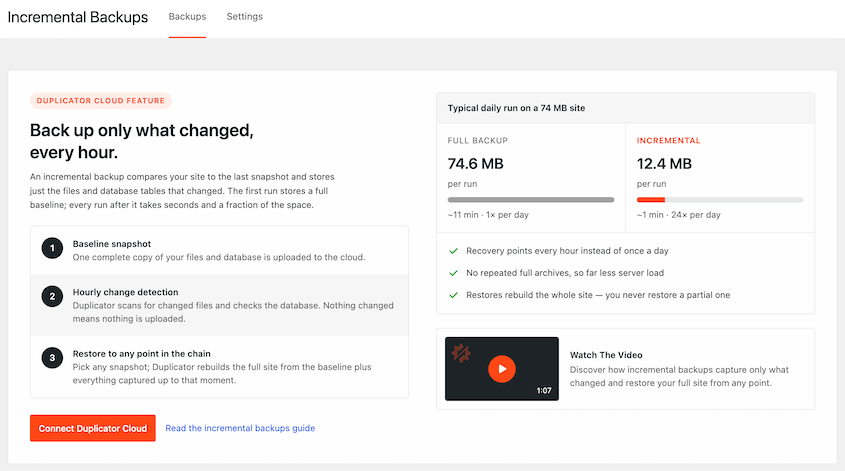
This opens your Duplicator settings. Here, you can purchase a storage plan and connect it with a token or your Duplicator Pro license.
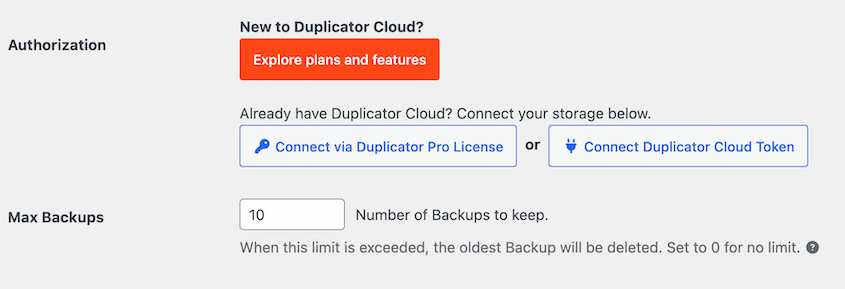
When you see the success message, go back to Duplicator Pro » Incremental Backups. The page should now show that your cloud storage is connected.
Step 2: Create Your Baseline
Every chain starts with a baseline. Click Create Baseline Snapshot and then OK to confirm.
Duplicator creates a full copy of your site and uploads it to Duplicator Cloud. This takes a few minutes, depending on the size of your site.
When it’s done, your baseline appears in the Snapshots list.
Step 3: Schedule Your Incremental Backups
Next, choose how often Duplicator checks your site for changes.
In the Backup Chain panel, pick an interval from 1 to 24 hours. Then, set how many backups to keep (the minimum is 2).
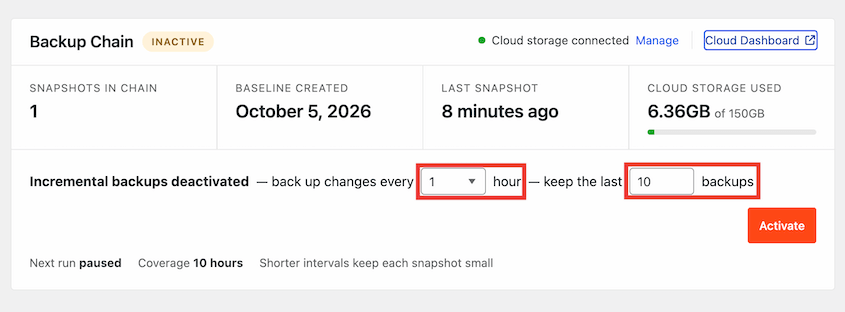
Shorter intervals keep each snapshot smaller. When you reach your backup limit, Duplicator merges the oldest snapshots into the baseline automatically.
Click Activate. Your chain will show as active, and Next run tells you when the next backup starts.
Step 4: Choose What Triggers a New Backup
Some parts of your site change constantly, even when you aren’t doing anything. Logs, caches, and scheduled task tables update all day.
You don’t need a new snapshot every time a log file changes.
Open the Settings tab and expand Backup Filters. For each folder, file, or database table, you can choose one of three options:
- Backup: Include it in your backups and create a new snapshot when it changes.
- Unwatch: Keep it in your backups, but changes to it alone won’t start a new snapshot.
- Exclude: Leave it out of your backups completely.
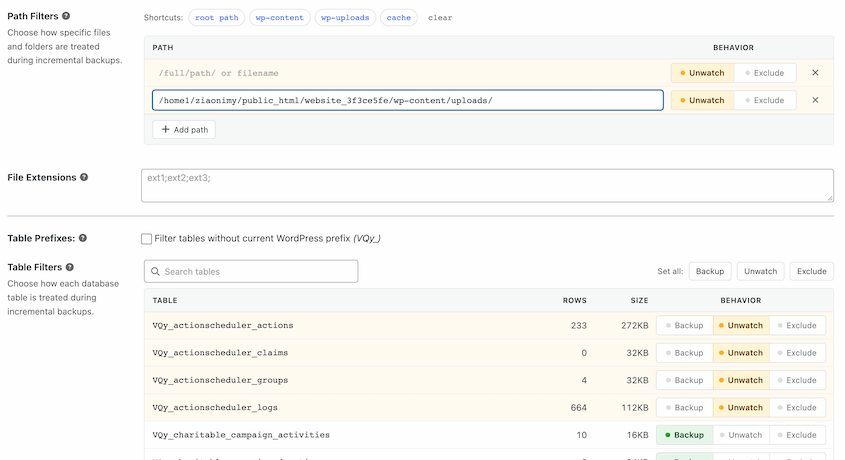
Duplicator unwatches the noisiest tables by default (including wp_options). WordPress core tables can be unwatched, but they can’t be excluded, so your site still works after a restore.
Click Save Template when you’re done.
Step 5: Check What Each Backup Captured
Every snapshot in the list shows how many files and tables it captured. Click that summary to open the Snapshot Change Details window.
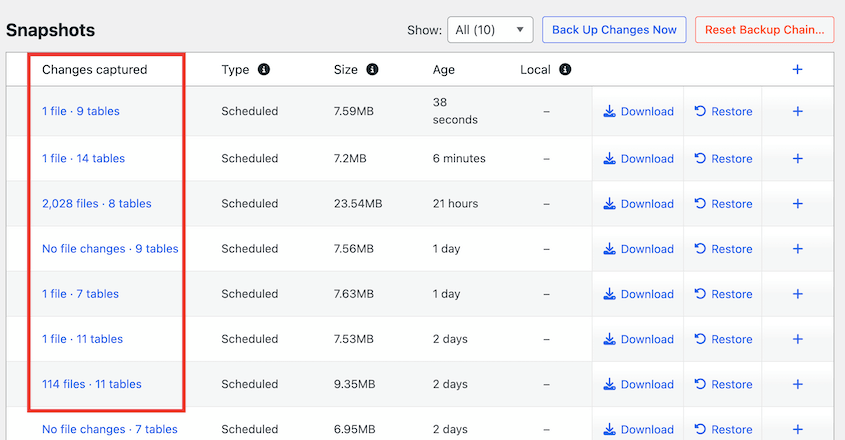
You’ll see every file that was added, modified, or deleted, plus the database tables that changed.
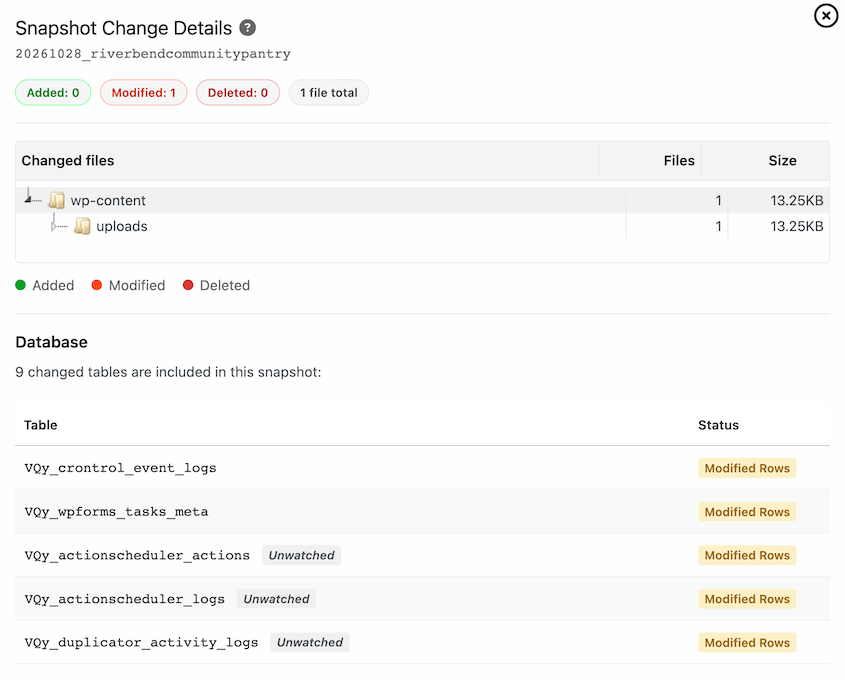
This makes it much easier to pick the right backup. If a plugin update broke your site at 2 PM, you can find the snapshot taken right before it.
You can also see every snapshot in your Duplicator Cloud dashboard. Click Cloud Dashboard in the Backup Chain panel, or go to Websites » [Your Website] » Incremental Backups in Duplicator Cloud.
Step 6: Restore Any Snapshot
When you need to roll back, go to Duplicator Pro » Incremental Backups and click Restore next to the snapshot you want.
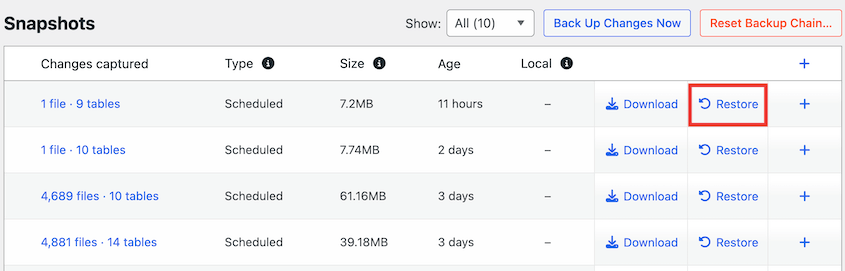
If Duplicator Cloud hasn’t generated a full backup for that snapshot yet, click Request Archive. Duplicator Cloud will email you when it’s ready.
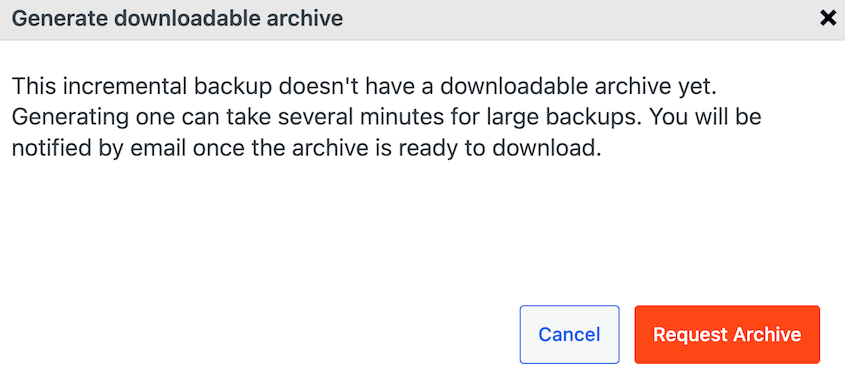
Then, click Restore next to the same snapshot again. In the pop-up, download the backup to your server.
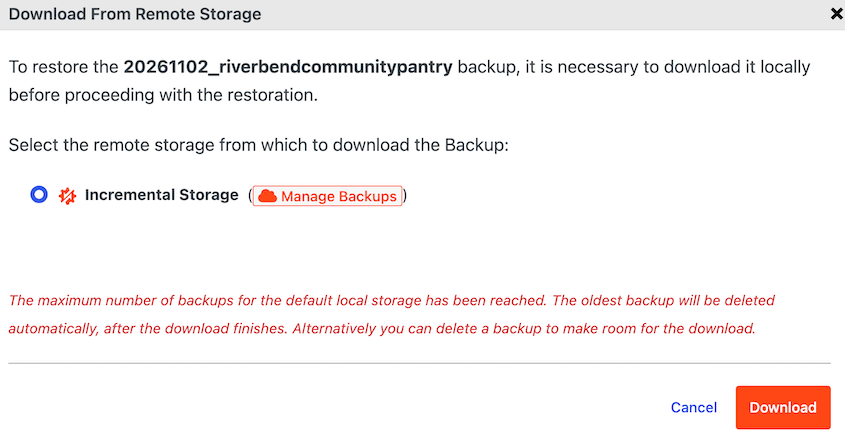
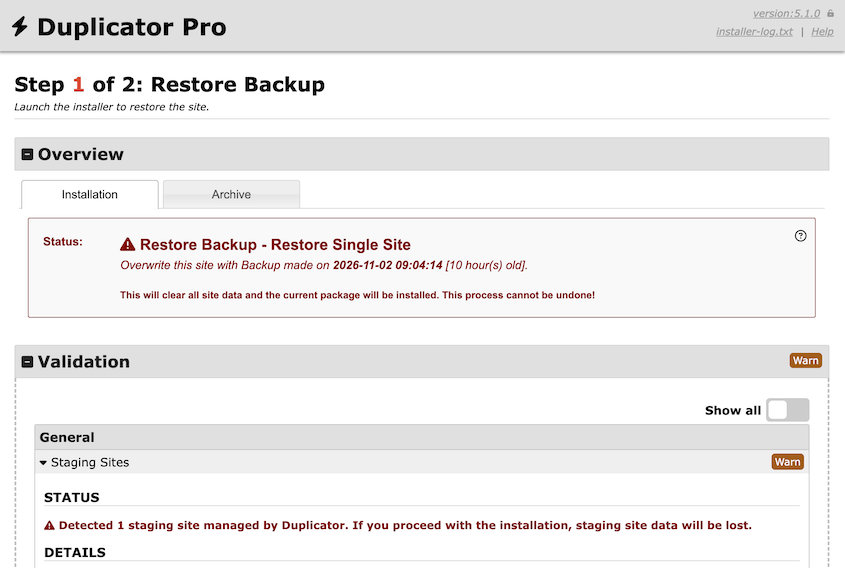
The Duplicator installer will open. Accept the terms and notices, click Restore Backup, and confirm with OK.
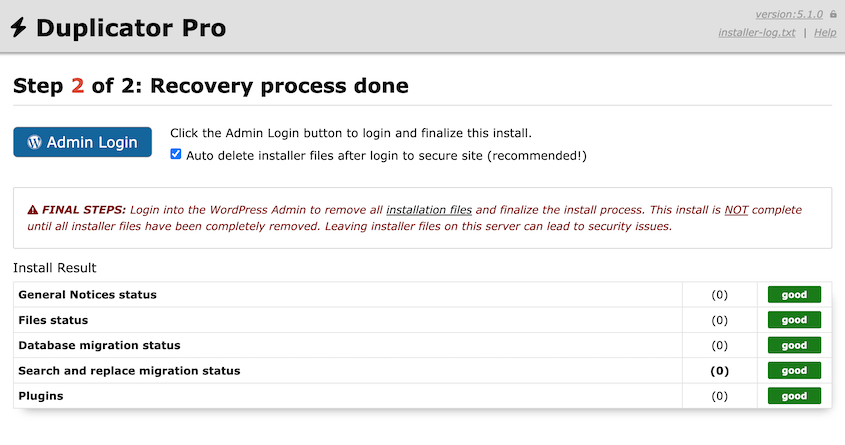
When the restore finishes, click Admin Login to log back in.
Restoring an older snapshot doesn’t delete your newer ones. They stay in Duplicator Cloud, so you can restore a later snapshot if you need to.
How Often Should You Run Incremental Backups?
The right schedule depends on how much you’d lose between backups.
Here’s how I’d set it up for a few common sites:
- Online stores: Every hour. Orders, customer accounts, and inventory change all day.
- Membership and course sites: Every 1 to 3 hours, so new signups and student progress are covered.
- Nonprofit and lead generation sites: Every few hours, especially during campaigns that bring in donations or form entries.
- Blogs and brochure sites: Every 12 to 24 hours, or right after you publish.
Since Duplicator skips runs with no changes, an hourly schedule costs very little on a quiet site. You won’t fill your storage with dozens of identical backups.
Frequently Asked Questions About Incremental Backups
What are the four types of backups?
The four main types are full, incremental, differential, and mirror backups. A full backup copies your entire site. Incremental and differential backups copy only changes. Incremental backs up changes since the last backup and differential backs up changes since the last full backup. A mirror backup keeps an exact live copy of your files, so deleted files disappear from the mirror too and there’s no version history to roll back to.
Is an incremental backup better than a full backup?
For frequent backups, yes. Incremental backups are smaller and faster, so you can run them every hour without copying your whole site. Full backups are still the best choice before a migration or a major update, since each one is a complete, standalone copy. Most sites benefit from using both.
What’s the difference between a cumulative backup and an incremental backup?
A cumulative backup is another name for a differential backup. It saves every change since the last full backup, so it grows over time. An incremental backup only saves changes since the most recent backup of any type, so each one stays small.
Should I use incremental or differential backups?
Use incremental backups if you want to back up often, like every hour or every day. Each backup stays small, so frequent backups don’t fill your storage. Differential backups make more sense for a weekly cycle where you want a simpler restore with just two files. For most WordPress sites that change daily, incremental backups are the better fit.
Can I store incremental backups in Google Drive or Amazon S3?
Not with Duplicator. Incremental backups are stored in Duplicator Cloud, which keeps the whole chain together off-site. Your standard full backups can still go to Google Drive, Amazon S3, Dropbox, and other cloud storage locations.
Does restoring an older incremental backup delete newer ones?
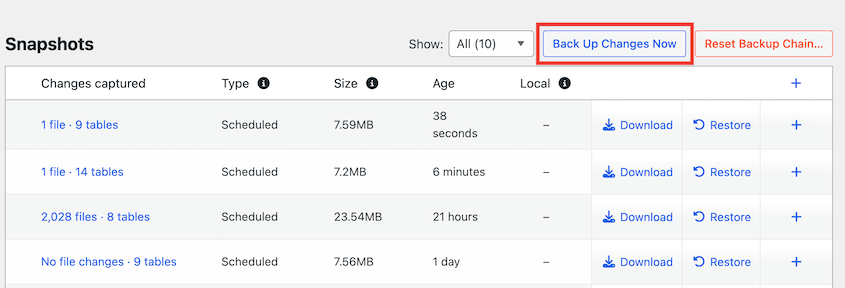
No. Restoring changes your website, not your list of backups. Every snapshot stays in Duplicator Cloud, so newer ones are still available to restore later. If you want to save your latest changes before rolling back, click Back Up Changes Now first.
What is the 3-2-1 rule for backing up?
The 3-2-1 backup rule means keeping three copies of your data on two different types of storage, with one copy off-site. Incremental backups in Duplicator Cloud count as an off-site copy, since they’re stored away from your web server. Pair them with a full backup in a second location to cover the rule.
Back Up Every Hour Without Filling Your Storage
A daily backup is a great foundation. Incremental backups fill in the hours between, so a bad update doesn’t cost you a day of orders or edits.
You’ll still want full backups. Incremental snapshots allow you to back up changes between your full backups, so you don’t lose data after a restore.
One extra tip: before you run a big batch of plugin updates, click Back Up Changes Now. It adds a snapshot to your chain right away without changing your schedule. If an update goes wrong, you’ll have a restore point from minutes before, not up to an hour before.
Ready to start? Upgrade to Duplicator Pro or Elite and add a Duplicator Cloud storage plan to back up your site every hour. Over 1.5 million WordPress professionals trust Duplicator to keep their sites safe.
While you’re here, I think you’ll like these other WordPress guides:
- How to Back Up a WordPress Site for Peace of Mind in 2026
- The 3-2-1 Backup Rule Explained: What It Is and What’s Changed in 2026
- How to Set Up WordPress Auto Backups to Google Drive, Dropbox, & S3
- Best FREE WordPress Backup Plugins: Simple, Fast, & Reliable (2026)
- How to Fix a Failed WordPress Backup: Settings vs. Server Limits
- The Safe Way to Back Up WordPress With AI Agents
The post What Is an Incremental Backup in WordPress? (And How to Run Them) appeared first on Duplicator.
Puedes consultar el artículo original aquí: https://duplicator.com/incremental-backups-wordpress/?utm_source=rss&utm_medium=rss&utm_campaign=incremental-backups-wordpress